Audit My Work Station
Overview
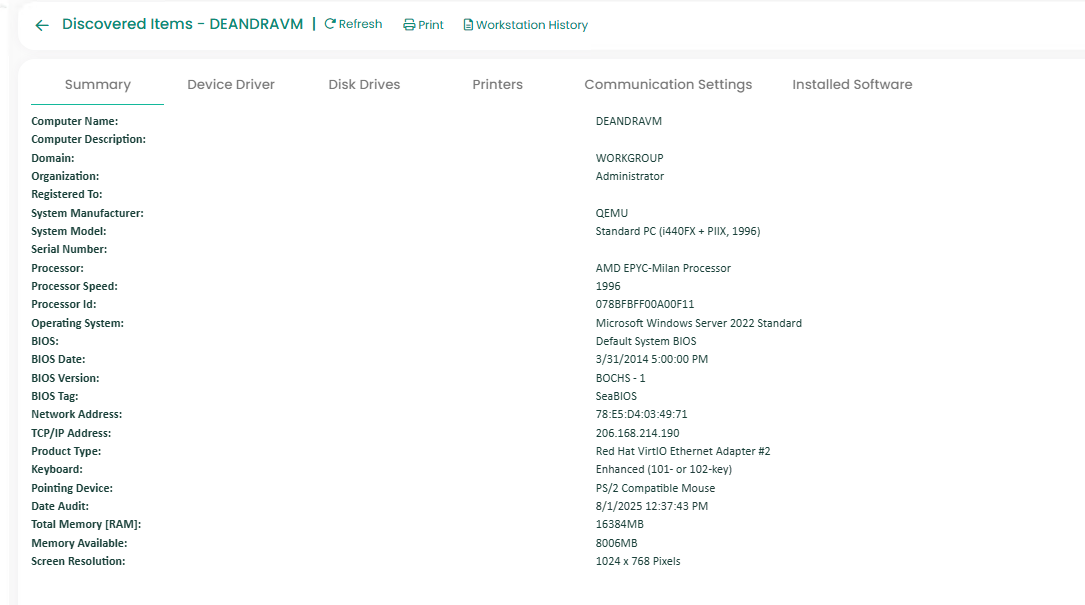
This function allows users to run an audit of the workstation. This audit will discover and then display all hardware and software installed on your workstation.
The below steps can be applied for both PrivilegedUsers and End Users.
How to Audit Current Workstation
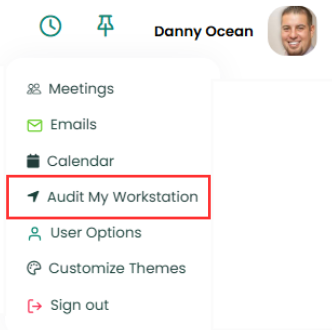
1. Navigate to the user profile icon on the top left of the screen, and click on the Audit My Workstation option.
2. When you select that option, the following pop-up appears, prompting you to download the setup file for Audit - SPAuditSetup.exe.
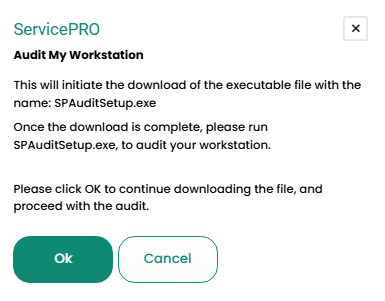
3. Click Ok to download the executable file to the downloads folder on your PC.

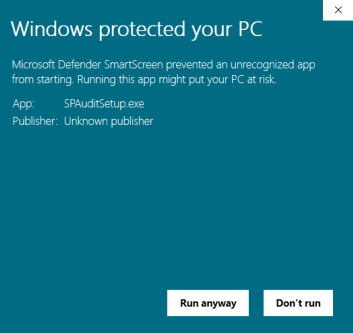
4. Navigate to the Downloads folder on your PC and double-click on the file to execute the SPAuditSetup.exe. It will then show a security warning prompt:
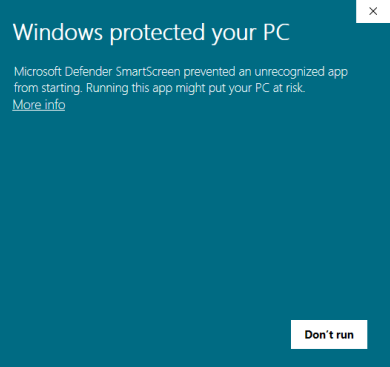
5. On the Microsoft Defender Security Prompt, please click on the "More Info" link. It will then show the option to "Run Anyway". Click on the "Run anyway" button.
6. Then, it will show a UAC prompt, please click YES on that UAC prompt.
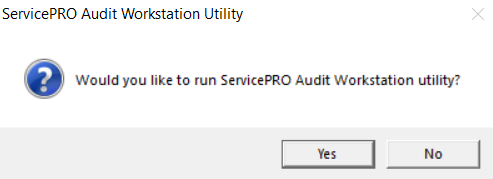
7. It will then start running the utility, and will show the prompt shown below, asking "Would you like to run ServicePRO Audit Workstation Utility?” – Please click “Yes” on this prompt.
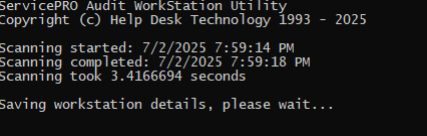
8. A command prompt window will be briefly shown, noting that it is scanning the workstation.
9. Followed by that, it will automatically navigate to the Discovered Items Properties page in the ServicePRO application on your browser to display the properties of your workstation that just got audited.