
ServicePRO Login
ServicePRO Login Page
ServicePRO features a Login Page with several editable sections. Each section can be customized by an Administrator using the Portal Designer to suit the needs of the organization.Editable items include:
- Logo
- Welcome Message
- Login Section
Customizable Content
ServicePRO Administrators can customize content on the Login Screen under the Portal Designer - General. This includes:
- The Login Page’s logo in the upper left
- The Login Page’s welcome message
- The right Login panel’s header message
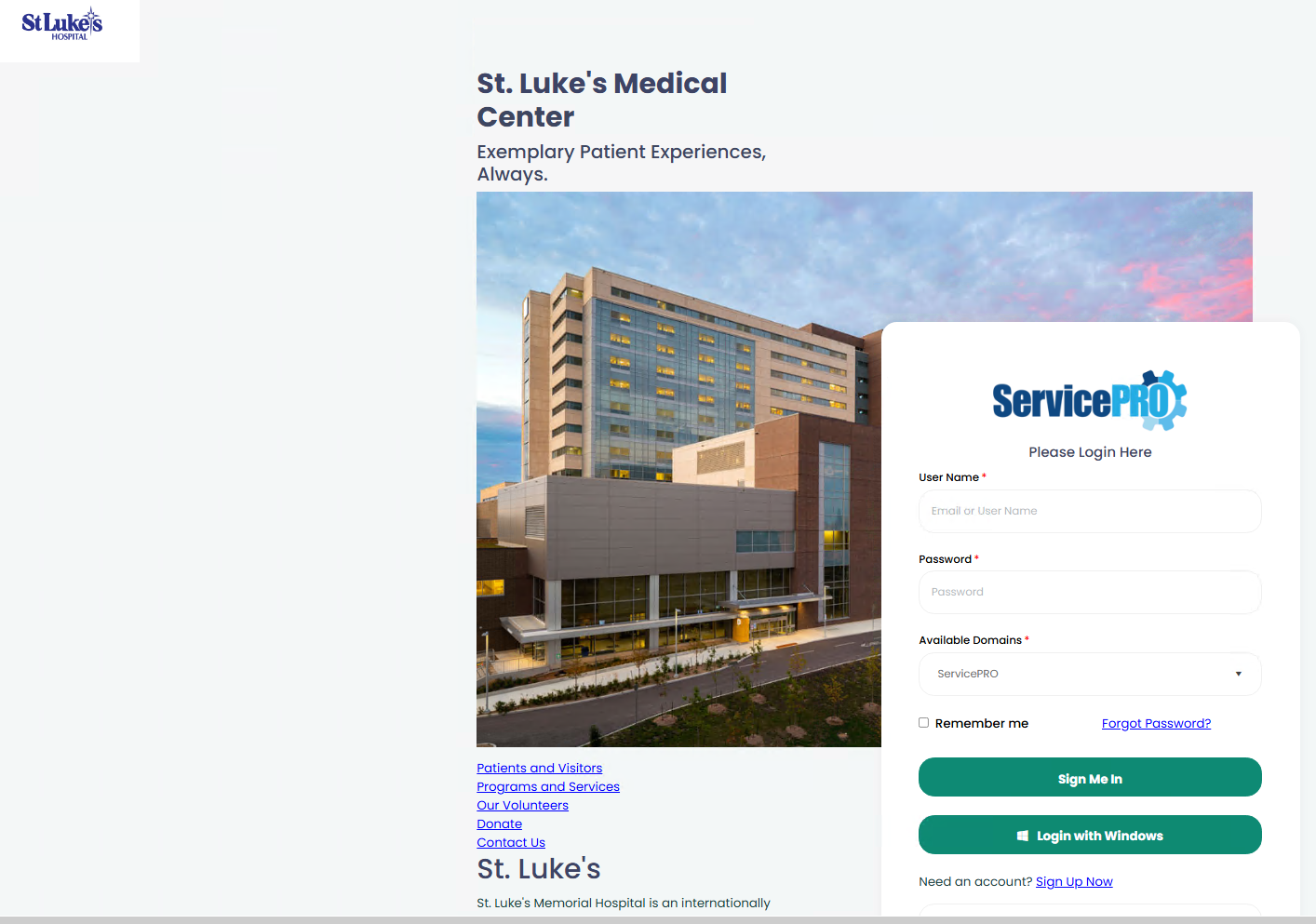
Login Section
The login section consists of several options:
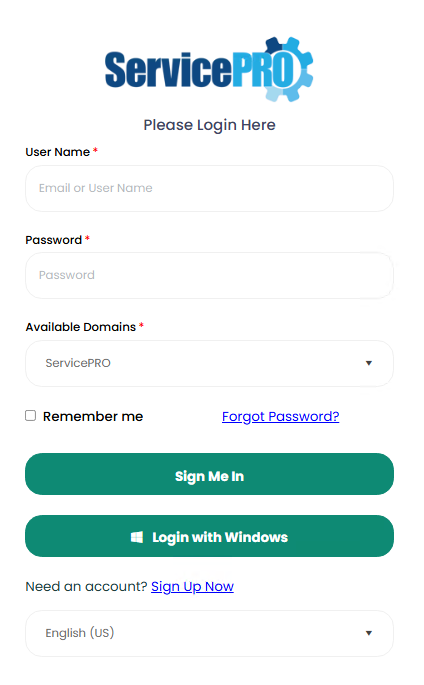
ServicePRO Authentication
If ServicePRO Authentication has been enabled by your ServicePRO Administrator, then you can choose the "ServicePRO" option under "Available Domains" and you can log into ServicePRO by entering your ServicePRO login credentials in the "Email or User Name" and "Password" fields, and clicking on the "Sign Me In" button.This option can be enabled or disabled by your ServicePRO Administrator in the ServicePRO Authentication Settings at - Active Directory Authentication
Active Directory Domain Authentication
If Active Directory Authentication has been enabled by your ServicePRO Administrator, then you can choose your On-Premise Active Directory domain under "Available Domains" and you can log into ServicePRO by entering your domain account credentials in the "Email or User Name" and "Password" fields, and clicking on the "Sign Me In" button, provided your user account is already present in ServicePRO.This option can be enabled or disabled by your ServicePRO Administrator in the ServicePRO Authentication Settings at - Active Directory Authentication
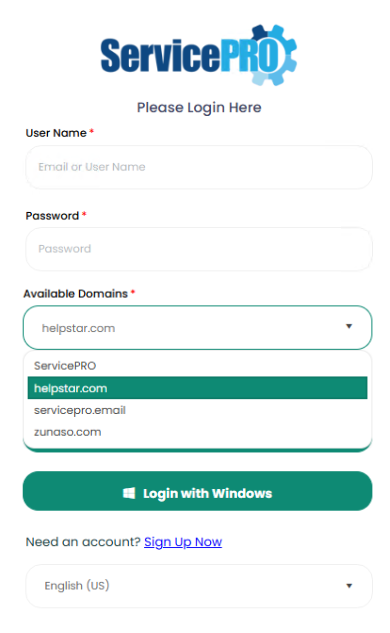
Login With Windows (Pass through Authentication)
This option will be available if the option "Allow user to sign in using Windows Login Account" is enabled by your ServicePRO administrator in the Portal Designer - General Settings - Sign-In tabThis option will log you into ServicePRO with using your currently logged in Microsoft Windows / Active Directory / Microsoft Entra ID account credentials, provided your user account is already present in ServicePRO. If your browser is currently not authenticated with your windows account credentials, then it will prompt you to enter Microsoft account credentials.
For the On-Premise Active Directory Pass through Authenticaiton to work, please take care of the necessary pre-requisite settings as noted here. ServicePRO - On Premise Active Directory Pass-through Authentication
For the Microsoft Entra ID Authentication to work, the necessary settings outlined in the following section should have been configured by your Administrator - Microsoft Entra ID Authentication Settings
Remember Me
Enable this checkbox if you want ServicePRO to remember your entered credentials.If you enabled this checkbox when you logged in for the first time, whenever you browse to the ServicePRO URL in the future, it will log you in automatically as soon as you click on the "Sign Me In" button.
Forgot Password?
In case of a lost password, select the Forgot Password option. Enter your Email account name for that account, and ServicePRO will send an email with instructions to reset your password.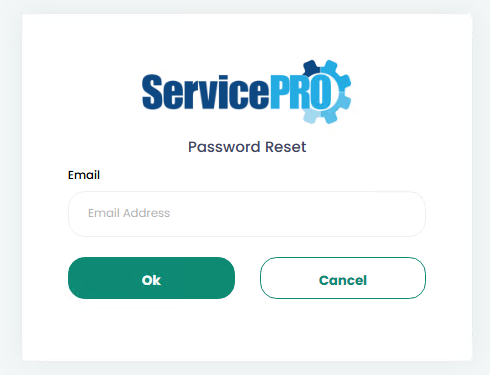
Need an Account? Sign up now
Sign up for a new account with this option. Administrators can enable or disable the ability to sign up for a new account from the Portal Designer - End User - Sign Up tab.When signing up for a new account, the following information is required:
- Display Name – Select the name that will be displayed on your Profile for use across the application.
- Email – Enter the email associated with this account.
- Password
- Confirm Password
- Cellphone
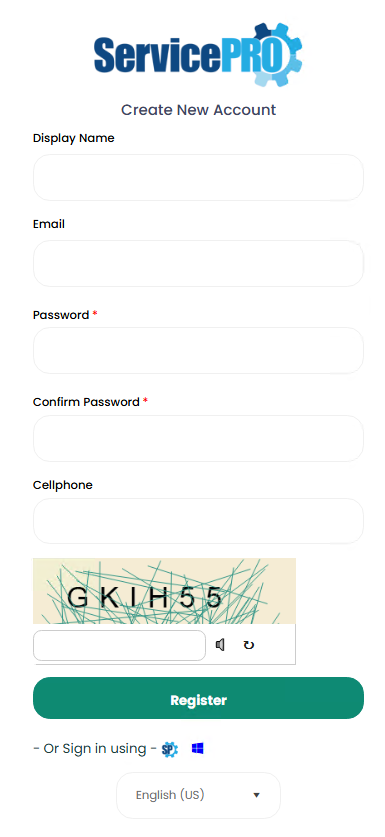
"- Or Sign in using -" Option
- When clicked on the "ServicePRO" icon, will take the user back to the Login Screen to sing in using ServicePRO Credentials.
- When clicked on the "Windows" icon, will login the user with Windows Authentication.

CAPTCHA
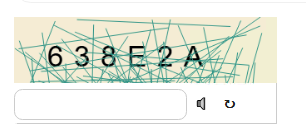
CAPTCHAs can be used for for additional login security if enabled by the Administrator in the Portal Designer - General - Sign In tab.CAPTCHAs can also be used for verification when performing a new Account Sign Up if enabled in Portal Designer - End User - Sign Up tab.
Language Options
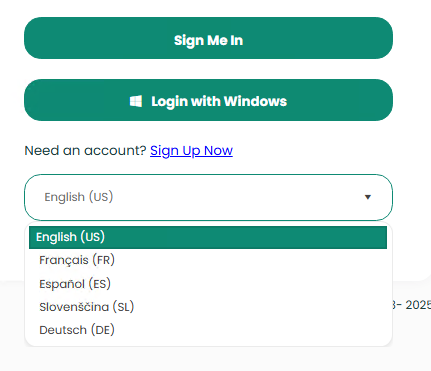
The following languages are available:- US English
- Spanish
- French
- Slovenian
- German
Only the Menu options, Field Labels, and the text within the message prompts will follow the selected language. All user entered information will continue to be in English only.
Logging in and Licenses
Account Access, Licenses, and Privileges
While trying to login as a privileged user, and if the user does not have a named license assigned, the application will validate for the availability of unconsumed floating licenses.
- If there are unconsumed floating licenses available, then the user will be logged in normally.
- If all floating licenses have been consumed and a floating license user tries to log in:
- Users with administrative privileges will be given a grid listing of all floating users currently logged in. The user can choose to log out one of the floating license users in order to free up a license.
- Support Reps (if enabled in System Options) and Users with administrative privileges will be allowed to send a message before logging out a selected user, or force that user to log out immediately.
- If sending messages is disabled, or if forcing other floating license users to log out is disabled for Support Reps, then users will be shown a message indicating all floating licenses are in use at the moment, and should try again at another time.
- Users with no administrative privileges can contact administrators to log out a floating license user if necessary.
- End Users are allowed to open multiple sessions of ServicePRO. Support Rep Users will be restricted to only one session of ServicePRO login at a time.
Logging Out Floating License Users
Administrative users will be allowed to send a message before logging out these users, or force that user to log out immediately.
- If sending messages is disabled, or forcing other floating license users to log out is disabled, then users will be shown a message indicating all floating licenses are in use at the moment, and should try again at another time.
- Users with no administrative privileges can contact administrators to log out a floating license user if necessary.
- Administrators may also enable the automatic idle sign-out feature for the floating license users in the System Options - General tab under the Floating License User Sessions Maintenance Section. After a floating user is idle for the specified time, they will be signed out automatically to allow other floating license users to log in.
Integrating ServicePRO Login to an External Website Page
Check out the below wiki page for the instructions to setup the integration of ServicePRO Login Page onto an external website page.ServicePRO Login Integration onto an External Website Page