
Installing and Using ServicePRO as an App
Contents [hide]
- 1. Overview
- 2. Installing and using ServicePRO as an App on Windows Desktop Devices using the Google Chrome Browser
- 3. Installing and using ServicePRO as an App on Android OS Devices using the Google Chrome Browser
- 4. Installing and using ServicePRO as an App on iOS Devices using the Safari Browser
- 5. Installing and using ServicePRO as an App on MacOS Desktop Devices using the Safari Browser
- 6. Below are some known documented behaviors with respect to opening newer pages in a separate window versus separate browser tab
Overview
ServicePRO version 14.3.1.x on-wards does not have an app in the stores. However, you can install it as an app after browsing to your ServicePRO Application URL in a supported browser first, and then use it as an app. The following 4 sections outline the instructions to install ServicePRO as an App on different devices.
NOTE:
- Please note that the application is not fully tested for using it as an installed app yet. The complete testing will be scheduled during the next maintenance release [14.3.2.x] for ServicePRO.
- Installing and using ServicePRO as an App is possible only when the application URL is configured with a valid HTTPS certificate. The application must be accessible through a secure HTTPS connection without any certificate warnings.
- Mozilla Firefox does not support installing ServicePRO as a Progressive Web App as per the below notification in the Mozilla Support page - https://support.mozilla.org/en-US/questions/1363248
Support for Site Specific Browser SSB and Progressive Web Apps PWA has been dropped in Firefox 86 version, so it is no longer possible to use this feature in current Firefox releases.
Installing and using ServicePRO as an App on Windows Desktop Devices using the Google Chrome Browser
It is possible to install and use the 14.3.1.x version of ServicePRO application as an app after launching the application URL in the Google Chrome Brower.On Windows Desktop Devices, ServicePRO can be installed as an app through the Google Chrome Browser.
- Open Google Chrome.
- Navigate to your ServicePRO Application URL.
- Click on the “Install ServicePRO” button that is shown in the Browser URL Bar (indicated in the below picture).

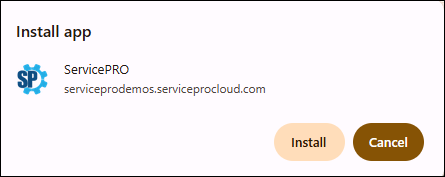
- Click on the Install button in the below “Install app” prompt that is displayed.
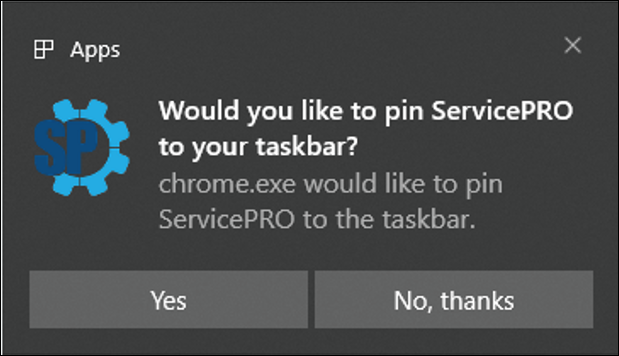
- After you click on the “Install” button, the below prompt is displayed. If you would like to pin “ServicePRO” to the taskbar, please click Yes on this prompt.
- The app will be installed, and the login screen will be displayed within the application window. Also, a desktop short cut will be created as below.
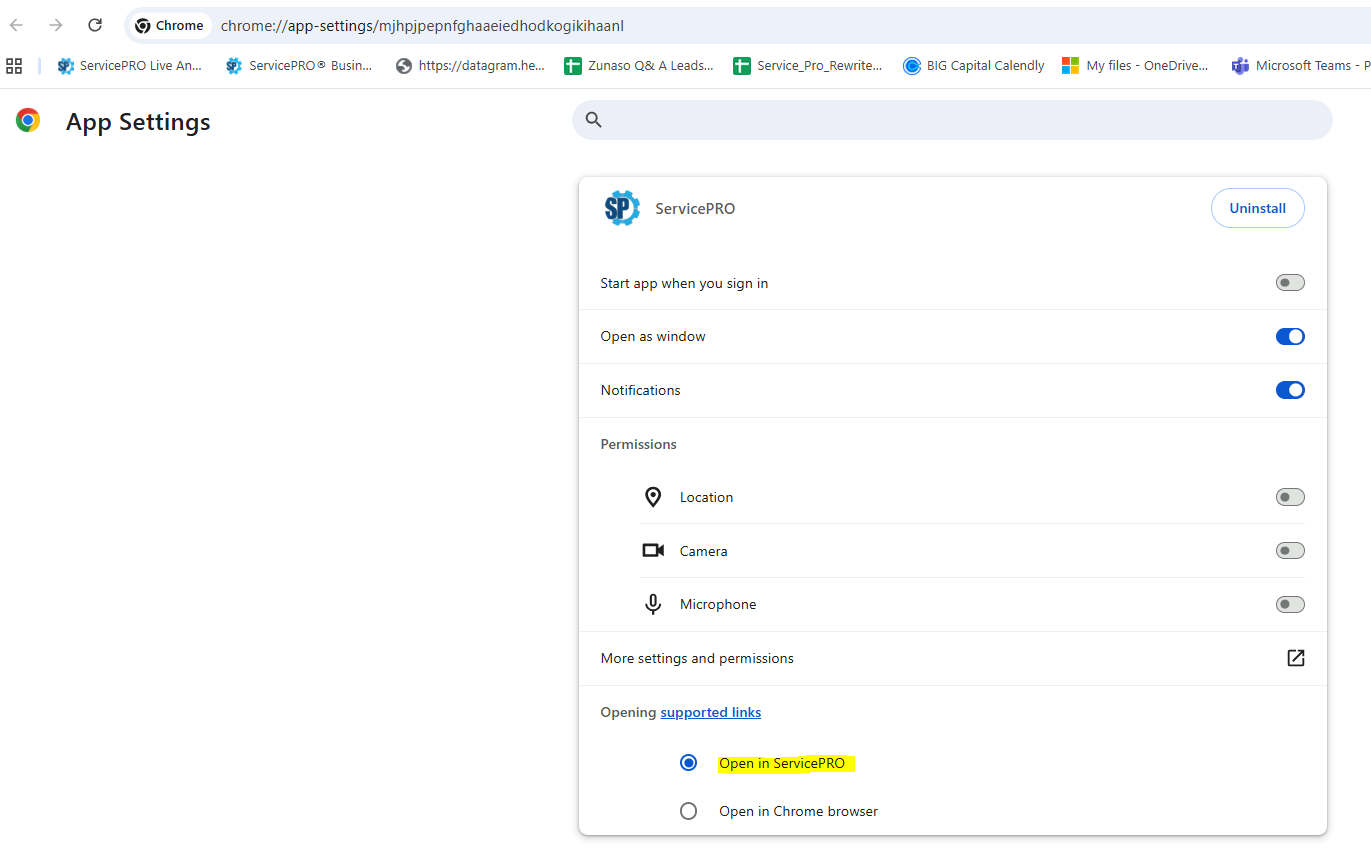
In the App Settings, please make sure that the following radio button (“Open in ServicePRO) is selected, inorder to open all the links for the app within the application window itself.
Installing and using ServicePRO as an App on Android OS Devices using the Google Chrome Browser
For Android OS devices, ServicePRO Application can be installed as an app and added to the Home Screen for easy access through your Google Chrome browser.- Open Google Chrome.
- Navigate to your ServicePRO Application URL.
- Tap on the “Add to Home Screen” option that is shown in the browser menu
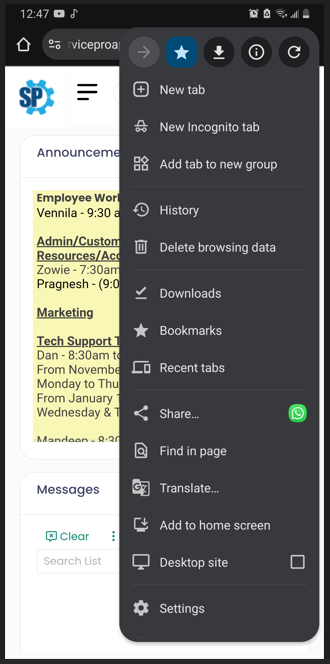
- The ServicePRO app will be installed and added to the home screen.
- Now tap the new ServicePRO app on your home screen, and it will open the application in its own navigation window, where you can start using it as you would normally do it from within the browser. Please remember to enable the “Remember me” checkbox so that you will not be required to enter the credentials every time you launch the app to use.
Installing and using ServicePRO as an App on iOS Devices using the Safari Browser
For iOS devices, ServicePRO Application can be added to the Home Screen for easy access through your Safari browser.- Open Safari.
- Navigate to the ServicePRO Application URL.
- Tap the Share button at the bottom of the page.
- Scroll down until you see Add to Home Screen and tap this.
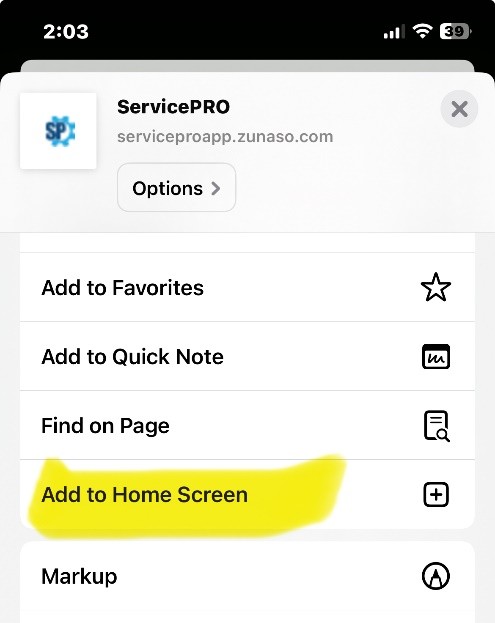
- On the next screen, you’ll see the link as well as the application’s icon. Click on Add to confirm.
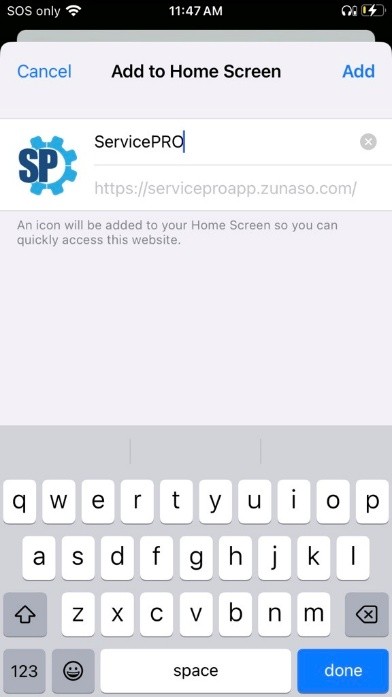
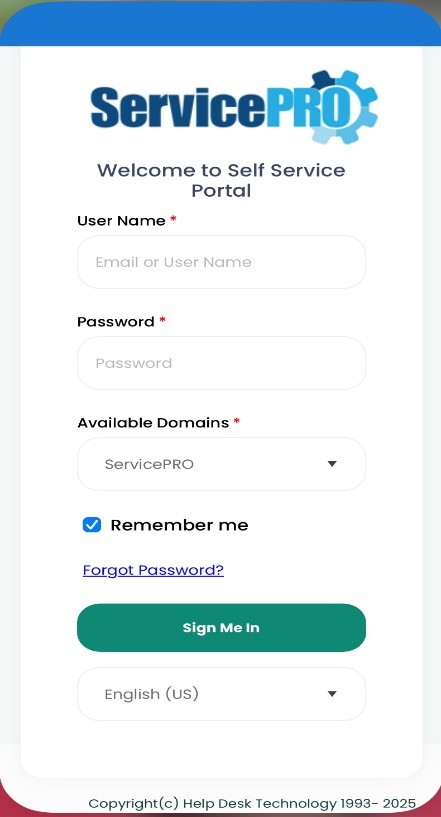
- Now tap the new app on your home screen, and it will open the application in its own navigation window, where you can start using it as you would normally do it from within the browser. Please remember to enable the “Remember me” checkbox so that you will not be required to enter the credentials every time you launch the app to use.
Installing and using ServicePRO as an App on MacOS Desktop Devices using the Safari Browser
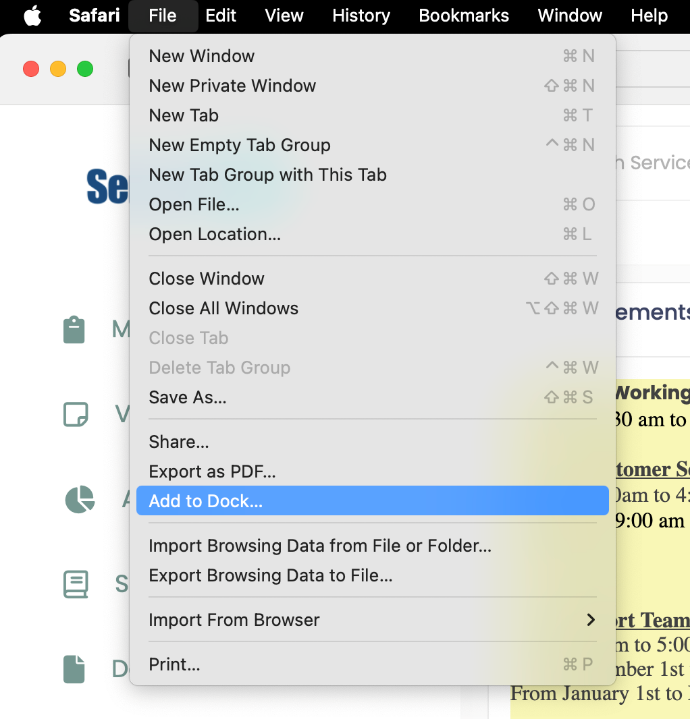
On MacOS Desktop devices, ServicePRO Application can be installed as an app using the safari browser by selecting the Add to Dock option as given below:
- Open Safari.
- Navigate to the ServicePRO Application URL.
- Use the “Add to Dock” option to install ServicePRO web application as an app.
- The new App will now be added to the dock in Mac.
Below are some known documented behaviors with respect to opening newer pages in a separate window versus separate browser tab
- If you try to open a newer option which does not normally open into a new browser tab, it opens fine within the currently opened servicepro app window itself.
- For the navigation panel menu options, if we intentionally perform Ctrl+Click to open the page in a separate app window, it opens fine in a newer app window.
- If you intentionally perform Ctrl+Click on the Application Logo to open another instance of home page in a separate app window, it opens fine a newer app window.
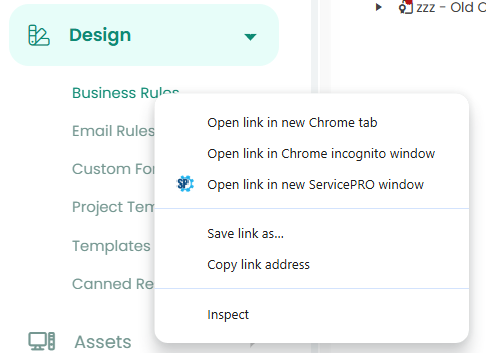
- In places where the right click context menu option is available, the option to open link in new servicepro window is available (for eg: “Business Rules” view in Navigation Panel menu as shown in the picture below), it opens fine in a new ServicePRO app window.
- In the Service Requests Listing Views, if you click on the Request # hyperlink, it opens in the current App Window itself. But if you perform Ctrl+Click on the Request # hyperlink in a list, it’s not following the setting for opening in a new ServicePRO app window, and so it opens in a browser tab instead.
NOTE: This will be addressed in the next release [14.3.2.x version]
Even if it opens in a browser tab, you will get the option in the URL Bar to open in app as shown below:
- In cases where the application is opening certain pages in a separate browser tab by default (options listed below), it’s not following the setting for opening in a new ServicePRO app window, and so it opens in a browser tab instead.
NOTE: This will be addressed in the next release [14.3.2.x version]
Even if it opens in a browser tab, you will get the option in the URL Bar to open in app. - Updating Service Request using Update menu option
- Creating a new Child Request using Project – New Child Request menu option
- Opening an item from the Global Search Results.
- Opening Request History Lists
- Opening Contact History Lists
- Running a Chart from Chart Listing